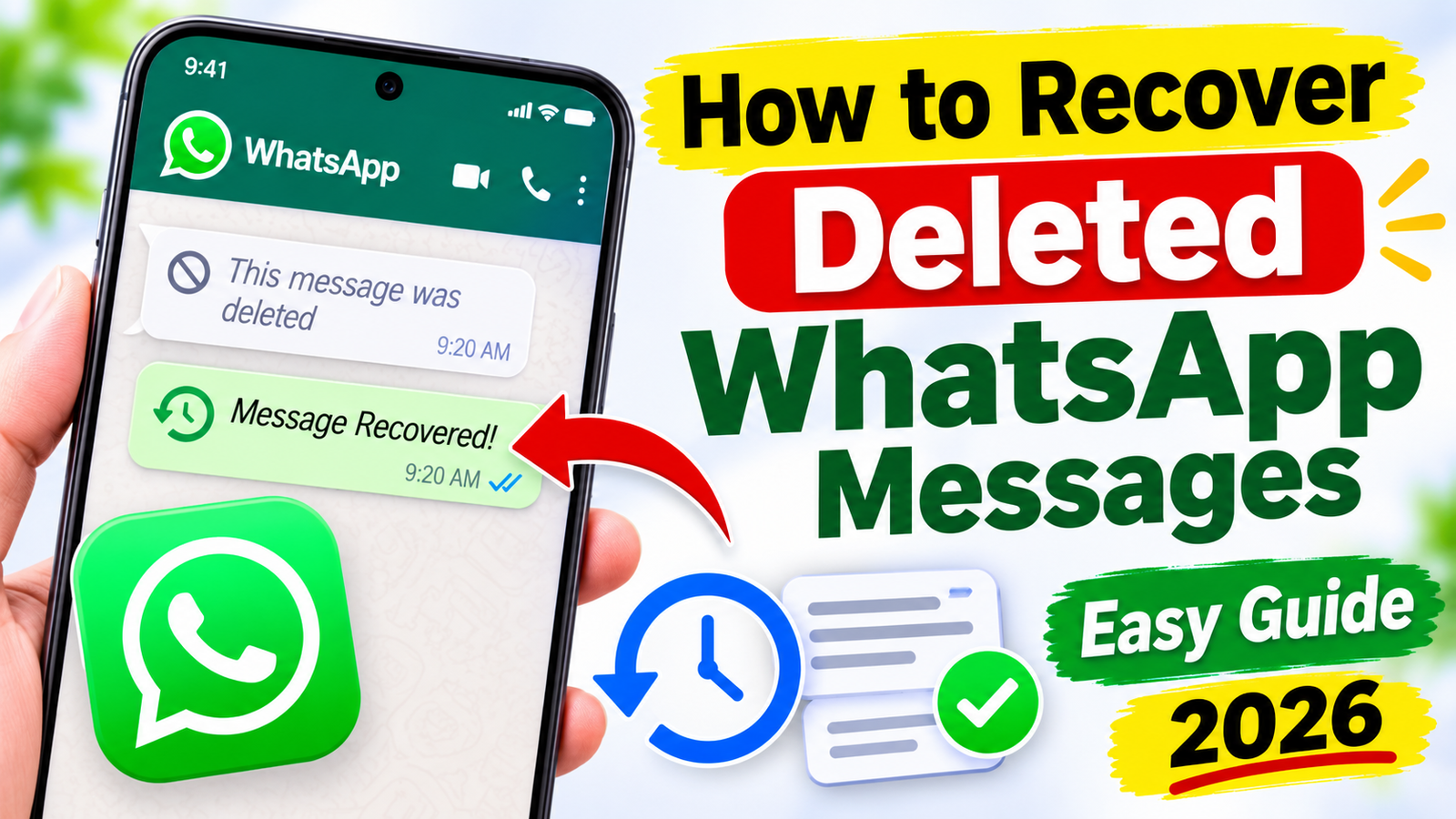
How to Recover Deleted WhatsApp Messages
Have you ever opened WhatsApp and discovered that someone deleted an important message before you could read it? This can be frustrating, especially when the message contains useful information, an address, or an important conversation.
Fortunately, there are several ways to recover deleted WhatsApp messages on Android. You can use WhatsApp backups, notification history, or third-party apps such as WAMR. However, each method has different requirements and limitations.
In this guide, you will learn how to recover deleted WhatsApp messages safely and understand which method works best for your situation.
Can You Recover Deleted WhatsApp Messages?
Yes, you may be able to recover deleted WhatsApp messages. However, success depends on how and when the messages were deleted.
For example, WhatsApp backup may restore messages saved before deletion. Similarly, notification history can sometimes show message previews received before the sender deleted them.
However, no method guarantees recovery of every deleted message. Therefore, choosing the right method is important.
Method 1: Recover Deleted WhatsApp Messages Using WAMR
WAMR is a popular Android application designed to help users save notifications and detect certain deleted messages.
The app monitors notifications from selected applications. When a WhatsApp message arrives, WAMR may save its notification content. If the sender later deletes the message, you may still see the saved notification.
How to Use WAMR
Follow these steps to get started:
-
Open the Google Play Store on your Android phone.
-
Search for WAMR or visit its official app page.
-
Install the application.
-
Open WAMR and complete the initial setup.
-
Select WhatsApp from the supported applications.
-
Allow the required notification permissions.
-
Follow the setup instructions to enable media monitoring if available.
After setup, WAMR can monitor supported notifications and save available message information.
Get WAMR on Google Play:
Download WAMR from Google Play
Important Limitations of WAMR
WAMR does not directly access deleted WhatsApp conversations. Instead, it relies on notifications and available device information.
Therefore, it may not recover messages when:
-
Notifications are disabled.
-
A conversation is muted without message previews.
-
The message arrives while the phone is offline.
-
The app was installed after the message was deleted.
-
Android restricts background activity.
-
The sender deletes media before WAMR can save it.
Also, some media recovery features may require additional permissions.
Method 2: Recover Deleted Messages Using WhatsApp Backup
WhatsApp provides backup options through Google Drive on Android. If you enabled backups before deleting a conversation, you may be able to restore older messages.
Steps to Restore WhatsApp Messages
-
Open WhatsApp.
-
Go to Settings.
-
Select Chats.
-
Open Chat Backup.
-
Check the date of your last backup.
-
Confirm that it contains the messages you need.
If the backup was created before the messages were deleted, reinstalling WhatsApp and restoring that backup may bring them back.
However, be careful. Restoring an older backup can remove newer messages that are not included in that backup.
Never create a new backup before checking your existing backup situation.
Method 3: Check Android Notification History
Some Android phones include a built-in Notification History feature. It can help you view notifications that appeared earlier.
How to Enable Notification History
-
Open your Android phone settings.
-
Find Notifications.
-
Select Notification History.
-
Turn on the feature if available.
The exact settings may vary depending on your Android version and phone manufacturer.
When enabled, Android may keep a record of recent WhatsApp notifications. You can check this history to find message previews.
However, this feature generally cannot show messages received before notification history was enabled. It may also exclude some media and notification content.
WAMR vs WhatsApp Backup vs Notification History
| Feature | WAMR | WhatsApp Backup | Notification History |
|---|---|---|---|
| Message previews | Yes, when captured | Yes, if backed up | Sometimes |
| Deleted media | Limited | If included in backup | Usually limited |
| Requires setup | Yes | Yes | Yes |
| Internet required | Not always | For cloud backup | No |
| Recovery guarantee | No | No | No |
Each method serves a different purpose. WAMR is useful for monitoring notifications, while WhatsApp backups are better for restoring supported older conversations.
Is WAMR Safe to Use?
Before installing any third-party application, always review its permissions and privacy information.
WAMR requires notification access to detect supported messages. This permission can expose notification content to the app.
For better privacy, follow these tips:
-
Download WAMR from the official Google Play Store.
-
Review its permissions before enabling them.
-
Avoid sharing private messages with unknown services.
-
Keep your Android operating system updated.
-
Read the application’s latest privacy policy.
Remember, no third-party application should be given unnecessary access to your personal information.
Tips to Avoid Losing WhatsApp Messages
Prevention is often easier than recovery. Follow these practical tips:
-
Enable regular WhatsApp backups.
-
Choose a suitable backup frequency.
-
Keep enough Google account storage available.
-
Avoid uninstalling WhatsApp without checking your backups.
-
Enable Android notification history if supported.
-
Protect your Google account with two-step verification.
These simple steps can help protect important conversations and reduce the risk of losing valuable information.
Conclusion
Recovering deleted WhatsApp messages is possible in some situations, but the results depend on your device settings and available data.
WAMR can help save supported notification content, while WhatsApp backups may restore older conversations. Android Notification History is another useful option for checking previously received notifications.
For the best results, enable backups regularly and review your notification settings. Most importantly, use trusted applications and respect other people’s privacy.